*Project: Dance Choreography - Train Bittle X to Do a Dance
Video Tutorial with Petoi Coding Blocks to Illustrate the Workflow
Introduction
Bittle X should perform a custom dance move using block-based coding in Mind+.
Thinking About the Task
Let’s teach Bittle X to greet people by dancing.
Think of an animation. How can an animator make a dog dance? How do we design a set of continuous motions through a sequence of steps in coding?
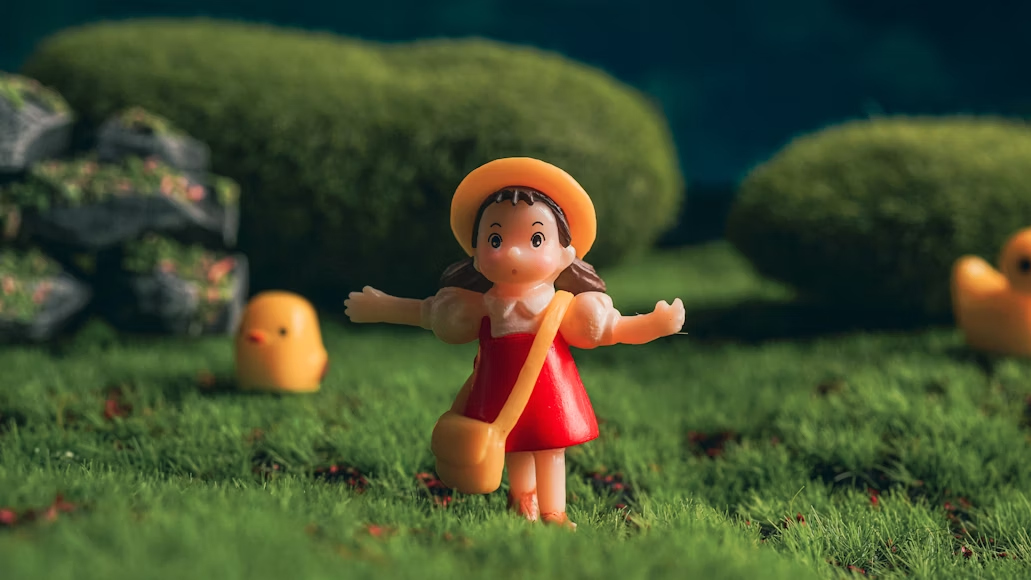
Like in Figure 1, a 3D or clay model can be posed step-by-step (also known as animating each frame ) to create a stop-motion animation. With your Bittle, the same effect can be achieved by posing the dog with a sequence of new movements on every progressive frame.
Open up Petoi Web Coding Blocks. The program allows you to control how Bittle poses. Bittle has joints where each joint is controlled by motor (known as a servo ).
Initial Setup
Be sure to make sure Web Coding Blocks are set up:
https://docs.petoi.com/web-block-base-programming/petoi-web-coding-blocks
Let’s Code!
Try adding these skills called Perform skill ___ and delay ___ seconds . It is found on the left side of the screen as shown in Figure 1.
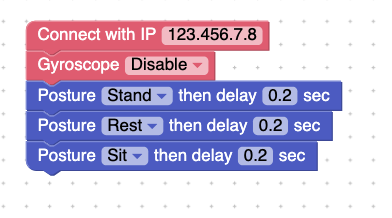
Try choosing a couple of skills. Then press Run to see how it works.
To make Bittle learn a new dance skill by sitting down, lifting one arm, and waving arms, follow the sequence below:
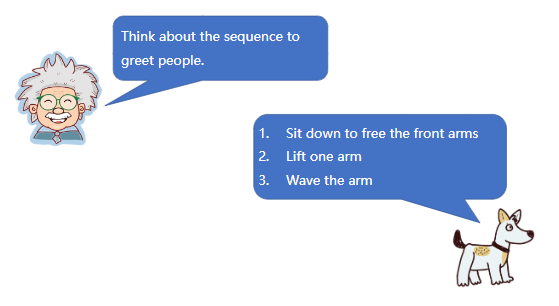
To do this in coding blocks, create the following blocks. Then press Run in the top right corner.
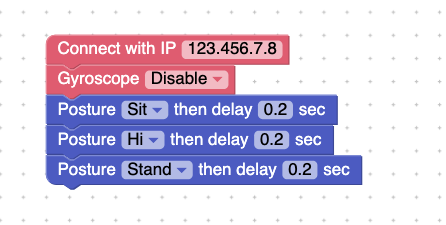
Try choosing a sequence of different skills.
Challenge 1: Make Bittle do Tricks and then Walk in a Circle
We are going to make Bittle do some tricks, and then walk in a circle by turning right a couple of times (actually, 45 times)!
Code Block: Repeat
Create the following code.
Next, add a repeat block like below.
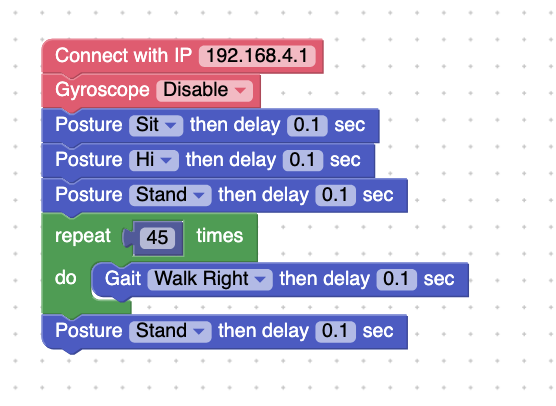
Any blocks put inside the repeat block will repeat as many times as you want. In this example Bittle takes a right step for 45 times to walk in a partial circle. After that, it will stand up.
Code Block: Variables
Let’s get Bittle to do an action whenever we type something into the program. In this case, make a thing called a variable.
A variable keeps track of information that we tell it. Let’s go to the section called variable > make variable.
Type in a name “Input”.
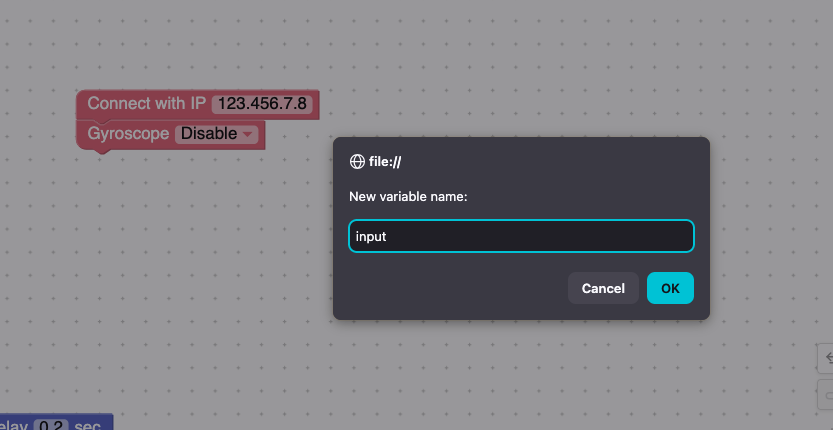
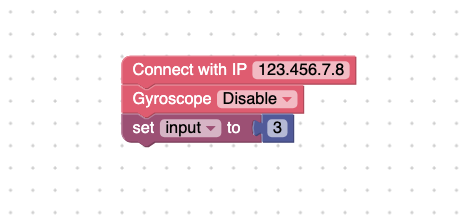
Then add a block called set Input to __ . See figure below.
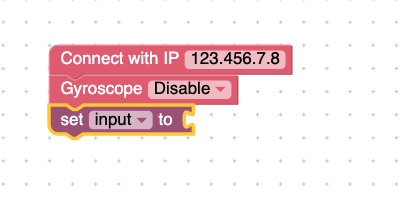
Next, add a number to the input. See Figure below.
Code Block: “If, Then, Else”
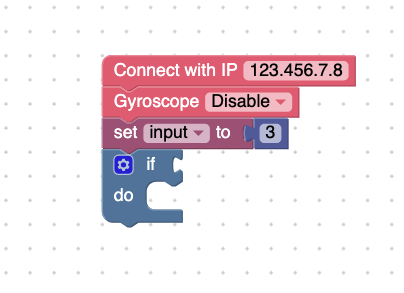
Next, add Control > if then else block.
Code Block: What does “If then else” do?
An if then else block tells you what will happen if something is true! It is very logical. and it is just like what would happen in real life. If something is true, then complete the sequence of steps. If something is NOT true, go to the else portion and do that sequence of steps. The little empty shape is where something should go, and it is usually a statement that can be true or false.
For example, what we will code is this:
- You input a number, such as the number
2
- You do the
if then elseblock
- In the condition (the empty space), you check if
2 > 0
- 2 is in fact greater than 0. Then Bittle will do a trick.
- If you chose a different number, like -1, then
-1 > 0is NOT true. Bittle will not do a trick.
Add the next block found under Operator. See figure below:
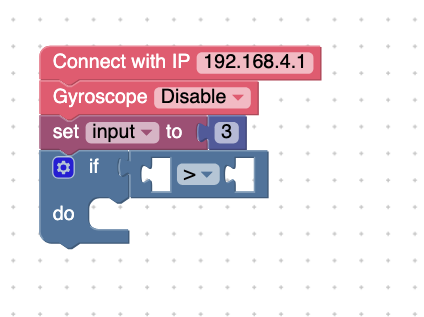
Put this in the operator part. See below:
Finally, fill in the rest of the blocks like below:
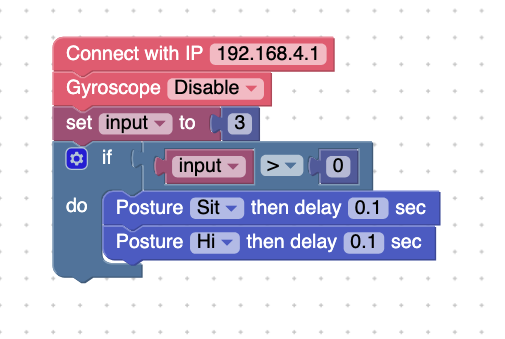
Try running this code.
Terminal: Explanation
Replace the input with another number (i.e. type 2) and press enter. Your screen should look like the following, and Bittle will perform the commands.
The terminal shows you what is happening with your Bittle. It prompts you for inputs (like typing in a number). It also shows you if there are any errors with your Bittle.
When you press Run, Bittle should perform the moves you show on screen.
If you type in 0 or a negative number, Bittle will not perform the tricks. This is because we are using the if then else block.
Challenge 2: Make Bittle Repeat Tricks Based on the New Variable
Now we can use the new variable we made called input. When you run the program and then type in a number in the terminal, that number is stored as a variable called input. In our program, we can use that number. For example, if you type in 2, Bittle can repeat the tricks 2 times!
Make a repeat block and put in the skills:
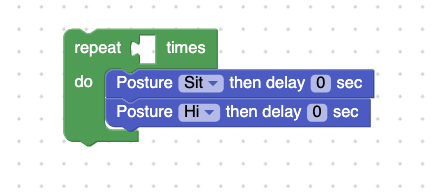
Put in the variable input:
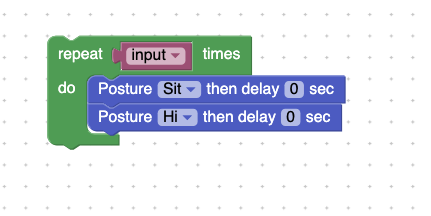
Put this new block in your code.
The final code should look like this:
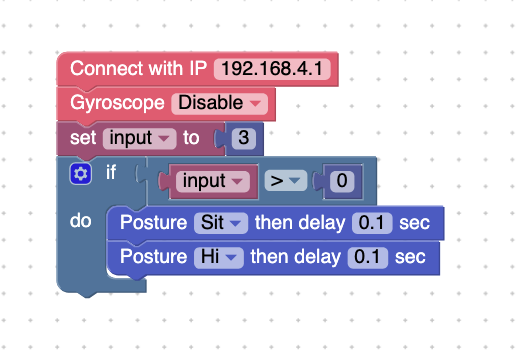
Bittle should now repeat the skills based on the number you input. For example:
If you input the number 3, when you press Run, Bittle should stretch and say hi repeatedly for 3 rounds.
Project Takeaways
- Challenge 1 showed you how to make Bittle do tricks and walk around in a circle.
- Challenge 2 showed you how to input variables, use block such as
if do, which is likeif then else, and make that variable influence the code to make Bittle repeat some tasks.
You-Try
- Try making Bittle do something based on a variable you input, like a number.